Readingeggs.com – The Sensible Mom’s Review of a Great Homeschooling Resource

readingeggs.com

Have you ever come across a homeschooling resource….book, website, chart, anything…..that instantly clicked with your child?

It just worked.

Automatically.

They loved it.

Instantly.

I have never had that experience before until I was given the opportunity to receive a free 3-month trial subscription of the program, Reading Eggs. As a member of The Homeschool Lounge’s review team, I had the opportunity to try out this online program. I wasn’t sure what to expect, but I was very pleasantly surprised. All 3 of our older kids, ages 11, 9, and 5, all loved it.

Why do my kids love it?

It’s like they’re playing a game, but they’re learning. They’re constantly learning, and this program is so well done, it keeps them interested and wanting to go on to the next level.

Why I love it?

It starts out with giving your child an assessment to see where they are at in terms of reading and spelling, and then based on the results of the assessment, your child starts the program on the appropriate level. There are 120 levels in all. After they finish those levels, they can go on to “Reading Eggspress” where they choose stories to read and are then quizzed on the material. Nathan and Breanna are both using Reading Eggspress and have enjoyed reading the stories. They often share what they’ve read about with me, and it sparks a conversation with my kids.

I also love the quality of this program. As a designer, I can appreciate well done graphics and effects. This program has both. I was very impressed by the high quality of the animation and characters in Reading Eggs. Very impressed. Because we’ve used other computer based programs in the past, and the graphics generally aren’t high quality and done well, which can take away from the program and make it less interesting.

I like that the developers of Reading Eggs are still working on the program to make it better and add more quality, educational content to it.

Who is Reading Eggs for?

This program is geared toward children 3-13 years old. I mentioned my older kids using the program. They’re 11,9, and 5yrs. old, but about a month ago, I started our youngest son, David, on the program, too. David is 3yrs. old, and after learning how to use the computer mouse pad, he’s been learning with the program, too.

When do we use Reading Eggs?

We’ve been using the program for almost 3 months now, and its become a regular part of our homeschooling routine for reading and spelling. When we first started using the program, it was hard to tear the kids away from it on the weekends.

If you don’t homeschool, would you still recommend Reading Eggs?

Yes! We use it for homeschooling, but it can be used to help your child learn the reading and spelling even if you don’t homeschool. It’s geared toward all children ages 3-13yrs. old. This would be a GREAT resource to help a child who is struggling in reading or spelling, too.

What do you need to use the Reading Eggs program?

You will need internet access. Unlike another computer based program that we’ve used called Switched-On Schoolhouse, which does not require internet access, Reading Eggs does.

Will we be purchasing the program after the free trial ends?

Resounding, “Yes!” I was able to find codes (internet search) to use for all the kids (except the baby) to try Reading Eggs (only 1 child got the free 3 month subscription provided my Reading Eggs) on a trial basis, and next week I will be purchasing 1yr. access to the program for Nathan, Breanna, Isaac, and David.

The bottom line?

This program works. How do I know? Nathan and Breanna are doing better in reading and spelling, and Isaac has grown in leaps and bounds in knowledge of letters, their sounds, and sounding out words. Go check it out and see for yourself. You can get a free trial for your child on their website.

Disclosure: I received a free 3 month trial of Reading Eggs in exchange for my review. All opinions are my own. I would have totally recommended Reading Eggs anyway. It’s a great program!

Print Friendly

Losing the Baby Fat Weight Loss Update

losingthebabyfat

Well, like with most of my blog posts these days, I don’t have a lot of time to write, so I’m going to jump right in.

Since I last updated, I’ve lost another .5lbs! It’s not a huge loss, obviously, but it’s a loss. :-)

I weighed in at 208.5 lbs. this morning.

I haven’t weighed this amount since shortly after I gave birth to Nathan, our firstborn. I had ballooned up to 252 lbs. (I started at around 155lbs.) during my pregnancy with Nathan, and got down to 192 lbs. after he was born. But then I stopped losing the pregnancy weight and started to see the scale go back up!

In the wrong direction.

I think I got to around 200-something and then started on Weight Watchers. I remember being 208 lbs. while on Weight Watchers. This was back in 2000.

12 years ago.

Wow.

I didn’t stick with Weight Watchers, and after losing around 10lbs. on the program, I quit. The weight loss also quit. No big surprise there.

Fast forward to May 14, 2012, and I am finally down to 208.5lbs. again! It’s been too long!

But I’ll take it.

And I’m going to keep on working to lose the rest of this weight.

We are juicing regularly, which I’m loving immensely. Today, I drank an entire 1lb. bag of carrots & an apple. Yum! It was soooo good. I also made fresh apple juice for Breanna, and I’m happy to see her requesting juice regularly. We still don’t have the entire family juicing, but we will…..little by little.

Anyway, here’s what my progress looks like:

Beginning weight: 220 lbs.

Current Weight: 208.5 lbs.

Goal Weight: 170 lbs.

# of total pounds I want to lose in 2012: 50lbs.

# of pounds to go until I reach my goal: 38.5 lbs.

Total # of pounds lost to date: 11.5 lbs.

Are you trying to lose weight this year? How is your progress going?


Print Friendly

10 Goals for the Week

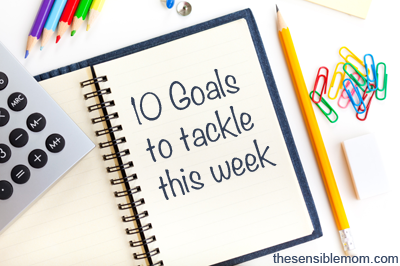
10 Goals to Tackle This Week

Last week simply flew by. I think it’s because we were busy trying to get some of the final things we needed to get done ‘within 30 days of moving to Georgia.’ We had to make a second trip to the Georgia Dept. of Driver’s Services (we call it the DMV (Department of Motor Vehicles) in Illinois), because on our first trip only my husband was able to get his license switched from Illinois to Georgia. The reason being is that I didn’t bring my marriage license with me (only my birth certificate and proof of address) showing how my lastname had changed from my maiden name on my birth certificate to my married name on my Illinois driver’s license.

Ruben was fine to get his license, because he’s always had the same lastname. He didn’t need the marriage license. I’m not sure why they didn’t mention on their website that you need to bring your marriage license if you are a married women…..this information would have been helpful.

We also had to get new Georgia “tags” for our car. This is also known as a license plate & sticker in Illinois. Saying “tags” for these is so weird to me. :-)

Nathan and Breanna started home schooling, too. We went over the laws for home schooling in Georgia, which are a bit more restrictive than in Illinois, but still totally doable.

We visited our new library. That was fun! The kids enjoyed it, and we are learning how to use their system. I love that the library is less than 2 miles away from us.

For my goals? I did okay. Here’s a recap…

Family/Mothering Goals:

1. Start reading through the book of Proverbs with the kidsDone. We did this as a family, and we’ll definitely be keeping it up.

2. Cook with Breanna. I’m trying to have Breanna help me in the kitchen a lot more often now that she’s 9.5 yrs. old. We are focusing on having her look at and follow recipes on her own. She’s enjoying it.Done. Breanna made 3 delicious recipes last week! This week we are focusing on doing DIY projects (our bathroom scale will thank me later :-) ). After we moved in, I had Breanna made a double batch of homemade hand soap, and on the agenda for this week will be homemade makeup remover (for me) and homemade deodorant. I’ll definitely be posting about our progress.

Personal Goals:

3. Juice everyday this week – We missed juicing one day during the week, and then we didn’t juice at all over the weekend, but other than that, we juiced! We went to Publix and stocked up on veggies and fruits to juice for this week.

4. Pay Bills. – I paid some of the bills online, and then remembered that I needed to order checks for those I don’t pay online! I’ve ordered the checks, and when they get here, I can send checks out for the rest of the bills.

5. Start counting my calories again – I started counting my calories a couple of days, but then didn’t keep track.

Home Management Goals:

6. Organize and unpack the master bathroom – We are definitely getting close to the finish line here, but there’s still some unpacking that needs to be done to finish. My sweet husband did about 95% of the cleaning, organizing, and unpacking for me.

7. Unpack the 6-7 boxes upstairs - I unpacked all of the boxes in my office, and it’s starting to look so much better. I’ll post pictures later. We still have one box in our bedroom to unpack and then I forgot about the 2-3 boxes in Breanna’s room that need to be unpacked.

Business Goals:

8. Post one blog post each day - I’m still struggling to start my regular posting schedule that I had planned, but I’m hoping for a MUCH better week this week. 

9. Work on client project that I’m behind onDone, but not done with the project. I did put a lot of work into it last week, and I can’t wait to show you guys when it’s finished!

10. Create graphics for new topics I’ll be posting on – I didn’t get to this goal at all. 

And now for this week’s goals:

Family/Mothering Goals:

1. Continue reading through the book of Proverbs with the kids

2. Make homemade eye-makeup remover and deodorant with Breanna

Personal Goals:

3. Juice everyday this week

4. Start reading the ebook, Tell Your Time  (affiliate link) by Amy Lynn Andrews

5. Start counting my calories again

Home Management Goals:

6. Finish organizing and unpacking the master bathroom

7. Unpack the 3-4 boxes upstairs and remove the clutter that has accumulated around my desk

Business Goals:

8. Post one blog post each day and start my regular posting schedule

9. FINISH client project – this is a BIG goal, because this is a big project

10. Create graphics for new topics I’ll be posting on

What are your goals for the week?


Print Friendly

Around the Blogosphere: 5 Must Read Posts

aroundtheblogosphere

Here are my 5 must read posts from this past week. I hope you find one that encourages you.

Are You Called to be Small? on the Allume Social blog – We are not all called to be “big” bloggers, I’m embracing that.

Tips for Becoming Friends with Your Daughter on Stay-At-Home Daughter – Another reminder that I need to be intentional and Make Time to be friends with my girls

How to Overcome Burnout and Get Back on a Routine on Money Saving Mom – I’ve been feeling so stressed with life lately (not a big surprise since we’ve undergone such huge changes recently), it has been affecting me physically. This post was a good reminder of what I need to do to get back on track……time with God, sleep, and realizing how blessed I am.

3 Tips to Keep Things Organized on Blogging with Amy – This post encouraged me to get some organization going. I was encouraged to get stuff out of my head and onto paper. This definitely helps to keep stress at bay. Amy also mentions some good websites I’ve bookmarked for when I have time….

Gluten Free Peanut Butter and Chocolate Chip Cookies on Deliciously Organic – I’ve been having Breanna practice her baking skills for school, and we’ve been having fun trying out new recipes. I wanted Breanna to try making some ‘healthier’ cookies, though. The recipe I found on Deliciously Organic was perfect! The cookies are gluten free and don’t have any flour, but they taste like they do. We loved these cookies, and I’ll definitely have Breanna make them again.

gluten free cookies

Have you read any good posts this week?

Print Friendly

4 WordPress Plugins to Give Your Blog a Boost

4 Useful WordPress Plugins

I know I haven’t been around much the last few days. I’ve been working on designing and creating, which are extremely time consuming endeavors, but in doing so, I’ve come across some great plugins. When a client asks me if I can do something on their website or blog that I’ve never done in the past, I’ve learned that before I try to spend lots of time figuring it out by myself (this usually involves coding which is a well-known time hog), it’s best to search for a plugin.

And guess what?

There is almost always a plugin for whatever functionality you need to add to your WordPress blog. The plugins may not always be free, but most are.

Here are some good, FREE plugins, I’ve come across lately:

YouTube Channel: Bloggers are increasingly creating YouTube Channels to share tips, tricks, information, and ideas with their readers. If you need an easy way to add your YouTube Channel to your blog, check out this plugin. It’s the best I’ve found so far to add a YouTube Channel onto a blog or website. And from what I’ve learned, YouTube has made it increasingly difficult to add your YouTube Channel to your website (code, anyone?). All the more reason to use this plugin.

Twitter Goodies: Need to add your Twitter steam to your blog? This is a great plugin to use, and it’s easy to style to match your website or blog’s design. If you’d like to see this plugin in action, check out the Allume Social blog. It’s in their sidebar. I’m also planning on installing and styling this plugin for The Sensible Mom.

WP Post Columns: Do you want to add columns to your posts or pages (say for lists of recipes?), but don’t know how to code to create columns? Or, if you are like me, don’t want to code, but want to make it simple for clients to create columns to make their content neat and pretty. This plugin makes it easy. You can add as many columns as you want, and it’s easily customizable, too.

LinkWithin: This is a plugin I’ve installed in the last couple of months that I’m really liking. Do you want to shows ‘related posts’ with thumbnail images at the bottom of all your posts? You can see an example of this on my posts. Just scroll down to the bottom of each post. The LinkWithin plugin makes it super easy! You won’t find this free plugin in your WordPress dashboard, though. You need to go to the LinkWithin website to get it.

Side note: If you don’t know how to install WordPress plugins, just head over to your WordPress Dashboard and go to “Plugins” then click on “Add New” and search for your desired plugin. Once you find the plugin you want, click on “Install Now”, then click “Activate.” After you’ve activated the plugin, see if there are any settings you need to change in order to get the plugin enabled and working on your blog. Doing this will work with all of the plugins I mentioned, except for the LinkWithin plugin. You’ll have to head over to the LinkWithin website and put in some info. there to get the widget for that plugin. 

If you need any help configuring these plugins or getting them onto your blog, feel free to hire me, and I’ll do it for you. :-)

Have you found any good plugins lately? What are the best plugins you’d recommend?

Related Posts Plugin for WordPress, Blogger...
Print Friendly